Configure Glorious Model O- Wireless on Linux (DPI & RGB)
Introduction
If you own a Glorious Model O (or O-, D, D-) Wireless and you moved to Linux, you probably found out that Glorious Core is Windows only. Mouse works fine out of the box, but you are stuck with whatever DPI and lighting you had set last time you were on Windows.
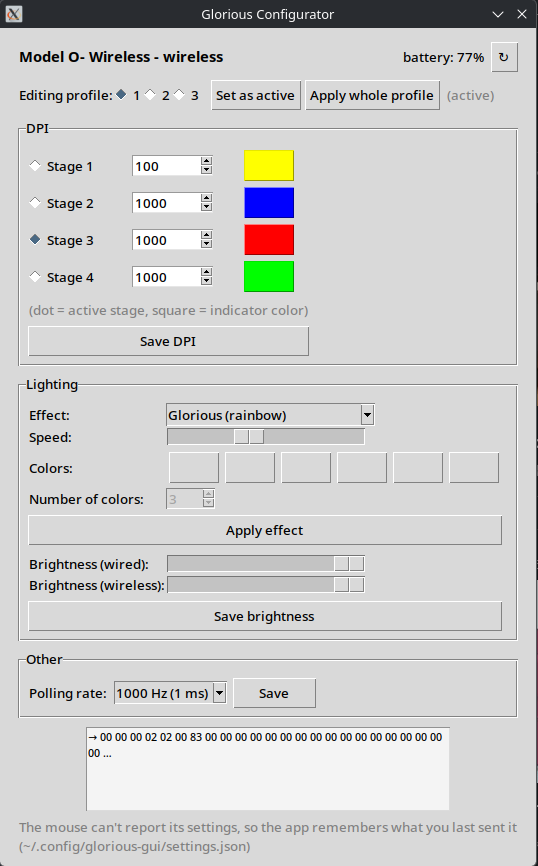
So I made a small app for it. You can find it on my GitHub: Ard3ny/glorious-gui
Turns out somebody already did the hard part. korkje/mow is a Rust CLI that does exactly this. The author sniffed the USB traffic with Wireshark and dug through the Glorious Core source code.
The only thing missing for me was a GUI. So with the help of AI (Claude) I ported the protocol to Python and wrapped it in a simple Tkinter window.
How does it work?
Glorious Core doesn’t do any magic. It sends short 65 byte messages (HID feature reports) to the mouse over USB. For example setting DPI stages to 400 and 800 looks like this
1
00 00 00 02 12 01 01 [profile] [count] 01 90 01 90 03 20 03 20 ...
0x0190 is 400 and 0x0320 is 800, every value is there twice (X and Y axis).
On Linux every HID device has its own /dev/hidrawX file, so the app just opens it and sends these messages with ioctl. No drivers, no extra libraries.
What can it do?
- DPI - 4 stages (100-19000), indicator color for each stage, active stage
- Lighting - 9 effects (Glorious, breathing, single color, tail, rave, wave…), speed, colors, brightness
- Polling rate, profiles 1-3 and battery status
Profiles
The mouse has 3 profiles and each one has its own DPI stages and lighting (brightness and polling rate are shared). Pick the profile at the top of the window, change whatever you want and hit save. Set as active switches the mouse to that profile.
There is one catch, the mouse can’t tell you its current settings, the protocol simply doesn’t support it. So the app remembers everything you send to the mouse in ~/.config/glorious-gui/settings.json and next time you open it, you see what you set last time.
Install
I’m on CachyOS, but it should work any distro will do just fine..
Clone the repo and install Tkinter
1
2
3
git clone https://github.com/Ard3ny/glorious-gui.git
cd glorious-gui
sudo pacman -S --needed python tk
Udev rule
Same story as with Keychron launcher, we need to give ourselves permission to talk to the mouse.
1
2
3
sudo cp 69-glorious.rules /etc/udev/rules.d/
sudo udevadm control --reload-rules
sudo udevadm trigger
Unplug and replug the dongle!
Note: The rule number needs to stay lower than 73 on Arch based distros, otherwise uaccess won’t apply.
App menu entry
1
bash install.sh
Now you can find Glorious Configurator in your app menu. I just pinned it to favourites.
To test if everything works, pick “Single color” effect, choose some color and hit Apply. If your mouse lights up, you are good to go.
On the first run the app shows default values (it has nothing saved yet), so set up your profiles once and hit Apply whole profile.
Supported mice
- Model O- Wireless (tested)
- Model O, D and D- Wireless (same protocol according to mow, but I couldn’t test them)
Newer mice like Model O 2 use different chip and won’t work.
Credits
All the reverse engineering credit goes to korkje/mow. If you prefer terminal, just use his tool directly with cargo install mxw.
Full disclosure, the app was built with the help of AI (Claude by Anthropic). It found the original project, ported it to Python and wrote the GUI. I tested it on my own mouse.